
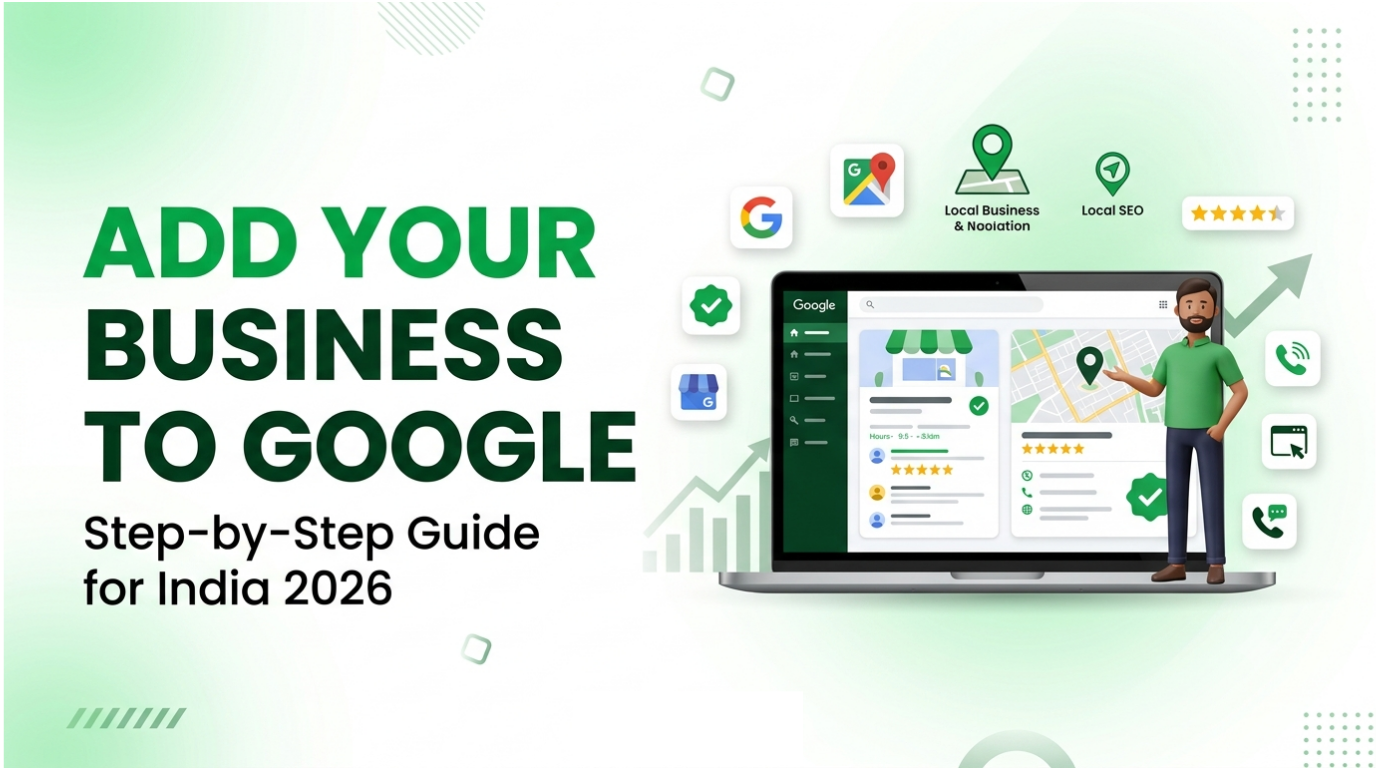
One of the most common questions Indian business owners ask today is: how do I add my business to Google? Whether you run a kirana store in Lucknow, a clinic in Pune, a coaching centre in Kota, a boutique in Jaipur or a home-service business in Delhi NCR, customers now search on Google before they walk in, call or place an order. If your business does not show up on Google Search and Google Maps, you are losing enquiries to competitors who do.
The short answer: to add your business to Google, create or claim a free Google Business Profile (formerly Google My Business) at business.google.com. You enter your business name, category, address or service area, and contact details, then verify the profile. Once verified, your business can appear in Google Search, Google Maps and local results across India.
In this guide from Kiefads, we walk through the full process, explain which setup suits your business, show how verification works in India, and cover what to do if your business is already listed, if verification fails, or if your profile gets suspended. Read on, then bookmark it for later.
Why Adding Your Business to Google Matters in India
India is one of the largest internet markets in the world, and most of those users are on mobile. People type searches such as “best dentist near me”, “AC repair in Noida” or “sweet shop open now” and expect instant answers with a phone number, directions and reviews.
A Google Business Profile gives you:
- Local visibility: appear in the map pack and local results when people search near you.
- Trust: reviews, photos and accurate details make customers more confident.
- More calls and visits: customers can call, get directions, message you or visit your website in one tap.
- Zero cost: creating and managing the profile is free.
- Insights: see how many people found you, called you or asked for directions.
For small and medium businesses, this is one of the highest-return local marketing steps you can take, and a strong foundation for local SEO.
What You Need Before You Start
Keep these details ready so the setup takes minutes, not hours:
- A Google Account that the business owns (create a new Gmail account for the business if needed)
- Your business name exactly as it appears on your signboard, bills and visiting cards
- A primary category that accurately describes your business
- Your full address with PIN code, or the areas you serve if you travel to customers
- A working Indian phone number (with +91) that you control and can receive calls or SMS on
- Your website, if you have one
- Opening hours, including weekly offs and festival closures
- A few genuine photos: signboard, storefront, interior, team, products or work samples
- Optional but useful for proof: GST registration, Udyam (MSME) registration, shop and establishment licence, a utility bill or a rent agreement in the business name
Step-by-Step: How to Add Your Business to Google
Step 1: Sign in with the Google Account that will own the profile
Use a desktop or laptop if you can, because the larger screen makes the forms easier to read. Sign in with the Google Account the business owns. Avoid using an employee’s, freelancer’s or agency’s personal account, because you could lose control of the profile if that person leaves. Complete 2-step verification if prompted.
Step 2: Check whether your business is already listed
Before creating anything new, search for your business name and city on Google Search, Google Maps or the Google Business Profile page. Many Indian businesses already have a listing created automatically from public data or by a customer, a previous employee or an old agency.
If your business appears and shows Manage now, Claim this business or Request access, do not create a duplicate. Claim or request access to the existing one instead. Google allows only one profile per business location, and duplicates can cause suspensions.
Step 3: Enter your business name and primary category
If nothing exists, go to business.google.com and choose to add your business. Enter your business name and then pick your category. The category is one of the strongest ranking signals, so choose the most specific option, such as “Dental clinic”, “Sweet shop” or “Plumber” rather than something broad.
Use your real-world name only. Do not add keywords, locations or taglines that are not part of your signboard.
Step 4: Add your address or service area
If customers visit you, add your full address: shop or building number, street, locality, city, state and PIN code. Then place the marker at the exact spot on the map and confirm it. Accurate pin placement matters because Google uses it to show you to nearby searchers.
If you travel to customers, such as an electrician, a tutor or a home-cleaning service, choose the service area option and list the cities or localities you cover. You can hide your home address in this case.
Step 5: Add your phone number and website
Enter a number customers can reach you on, and add your website if you have one. Use the direct business number, not a redirect or a call-centre line that points elsewhere. If you do not have a website yet, Google can offer a simple free site built from your profile, though a proper website gives you far more control and better long-term SEO.
Step 6: Verify your business
Verification proves that your business is real and that you are authorised to manage it. Your profile will not be fully visible until it is verified. Options available to you may include:
- Phone or SMS code
- Email code
- Video recording
- Live video call with Google support
- Postcard with a code (less common and not always available)
You will see only the options Google offers for your business, so follow the on-screen instructions.
Step 7: Add business hours
Set your open days and timings, and mark weekly offs. Update these during Diwali, Holi, Eid, Christmas, regional festivals and holidays so customers do not arrive at a closed shop.
Step 8: Write your business description
Write a clear, helpful description in under 750 characters. Mention what you offer, who you serve, the areas you cover and what makes you different. Write naturally for people, include a few relevant keywords, and avoid promotional claims like “best in India” or any links and phone numbers in the text.
Step 9: Upload a front image of your location
Add a clear, well-lit photo of your storefront showing your signboard. This helps customers recognise the place when they arrive.
Step 10: Add more photos
Upload interior shots, products, your team, work samples and a logo. Profiles with real, recent photos usually get more engagement than profiles with none. Use original images rather than stock photos.
After this, Google may show optional prompts for extras such as ads. You can skip them. Once you are verified, your changes go live and your profile is ready.
Note: Google changes its setup screens from time to time. The steps above reflect the process as of 2026. If a screen looks different, follow the on-screen instructions.
Storefront, Service-Area or Hybrid: Which Setup Should You Choose?
There is no single setup for every business. Pick the one that matches how you actually serve customers.
| Business type | Who it suits | What to enter | Is the address public? | Indian example |
|---|---|---|---|---|
| Storefront | Customers visit your location | Physical address | Yes | Restaurant, salon, jewellery showroom |
| Service-area | You travel to customers | Service areas | No | Plumber, AC technician, home tutor |
| Hybrid | Customers visit you and you also travel to them | Address and service areas | Yes | Diagnostic lab with home sample collection |
How Google Business Profile Verification Works in India
Verification is not the same for every business. Some owners receive an instant code by phone or email, while others are asked for a video. Here is a quick overview:
| Method | What you do | Keep ready |
|---|---|---|
| Phone or SMS | Enter the code you receive | Business phone with network |
| Follow the instructions in the email | Business email | |
| Video recording | Record and upload a video of about 30 seconds or longer | Smartphone, signboard, premises, equipment, products or tools, and proof you manage the business |
| Live video call | Show your business during a call | Smartphone and business proof |
| Postcard | Enter the code received by mail | Correct, complete postal address |
| Instant verification | Complete Google’s quick check where eligible | Eligible Google signals |
| Bulk verification | Apply for multiple locations | Multiple eligible branches |
Tips for a smooth video verification
- Start outside: show the road, the building and your signboard in one continuous shot.
- Walk in and show the interior, counters, equipment and products.
- Show proof that you manage the business, such as a tool, a stock register, a licence or billing system.
- Do not cut, edit or pause the video, and avoid filters.
- Make sure the name and address on the signboard match the name and address you entered.
What to Do If Verification Fails or Gets Stuck
- Email code missing: check spam, promotions and all mail folders, and confirm the email address is correct.
- SMS code missing: switch your phone to aeroplane mode for about 30 seconds, turn it off, and request the code again. Make sure you have network coverage and that DND settings are not blocking the message.
- Video rejected: open the profile, choose to review the issues, and re-record following Google’s instructions. Common problems are an unclear signboard, a name mismatch or a cut video.
- Postcard not arriving: confirm that your address is complete with PIN code and landmark, then request again after the waiting period.
- Repeated failure: check that your business name, category and address are accurate and consistent everywhere. If you are still stuck, contact Google Business Profile support or talk to a local SEO team such as Kiefads.
What to Do If Your Business Is Already on Google
If your business already appears in Search and Maps, you can still take control of it.
How to claim an unverified profile
- Sign in to the Google Account you want to use as the owner.
- Search for your business name and city on Google Maps or Google Search.
- Click your business and choose Claim this business or Manage now.
- Follow the prompts, complete verification and submit any documents requested.
How to request ownership from the current owner
- Go to business.google.com and search for your business name and address.
- Select your business from the list. If you see a message that someone else may manage this profile, choose Request access.
- Fill in your details and submit the request.
- Google notifies the current owner, who typically has a few days to respond. If they do not, you may be able to proceed with ownership.
This can get complicated if an old agency, a former employee or a competitor controls the listing. In such cases, professional help can save a lot of time.
Mistakes That Can Get Your Business Profile Suspended
Google can suspend profiles that misrepresent a business or break its guidelines. Avoid these common mistakes:
| Mistake | Why it is flagged | What to do instead |
|---|---|---|
| Keywords in the business name | Name does not match your real-world name | Use the name on your signboard and documents |
| Virtual office, co-working desk or P.O. box as address | Not an eligible customer-facing location | Use your real, eligible location |
| Showing a home address for a service-area business | Customers cannot visit it | Hide the address and list service areas |
| Duplicate profiles | One profile per location is allowed | Claim or edit the existing listing |
| Phone number or website that redirects elsewhere | Contact details do not match the business | Use your direct number and website |
| Too many or irrelevant categories | Dilutes relevance | Choose one primary and a few precise secondary categories |
| Fake reviews or buying reviews | Violates review policies | Ask genuine customers for honest feedback |
How to Add Your Business Website to Google Search
A Business Profile and a website work best together. To make sure Google can find and index your website:
- Open Google Search Console and sign in with your Google Account.
- Click Add property and choose Domain (covers all URLs) or URL prefix (a specific address).
- Enter your website address.
- Verify ownership using DNS record, HTML tag, Google Analytics or Google Tag Manager.
- Submit your sitemap so Google can crawl your pages faster.
Once verified, you can track clicks, impressions, search queries and indexing issues. If this feels too technical, an experienced team like Kiefads can set it up for you.
What to Do After Your Business Profile Goes Live
Creating the profile is only the beginning. To keep ranking and attract customers, do the following regularly:
- Reply to every review, positive or negative, politely and promptly.
- Keep hours updated, especially around festivals and holidays.
- Add fresh photos whenever you launch a product, service or new look.
- Post updates and offers for seasonal sales, discounts and events.
- List your services and products with clear descriptions and prices where possible.
- Add WhatsApp or messaging details so customers can contact you easily.
- Check Insights to learn how people find you and what they do next.
- Keep your name, address and phone number consistent across your website, social media and directories.
Why Choose Kiefads for Local SEO in India?
Setting up a Google Business Profile is simple in theory, but categories, verification, suspensions and ongoing optimisation can quickly become confusing. Kiefads helps Indian businesses build a strong, trustworthy local presence, from the first listing to long-term growth.
With Kiefads, you can get support with:
- Google Business Profile creation, claiming, verification and recovery
- Local SEO strategy for your city and neighbourhood
- Website design and development built for speed and search
- Review management and reputation building
- Social media marketing to extend your reach
- Support for businesses across industries, from clinics and restaurants to retail, education and home services
If you would rather focus on running your business while experts handle your online presence, reach out to Kiefads today and get found by the customers already searching for you.
Conclusion
Adding your business to Google is free and one of the most effective things you can do for local visibility in India. Check for an existing listing, create or claim your Google Business Profile, enter accurate details, verify your business and keep it updated with photos, posts and review replies. Follow Google’s guidelines carefully, and your business can start appearing on Search and Maps when nearby customers are ready to buy.
Need a hand? Kiefads can set up, verify and optimise your profile so you can start getting calls, visits and enquiries sooner.
Frequently Asked Questions
Is it free to put your business on Google?
Yes. Creating and managing a Google Business Profile is completely free. You only pay if you choose to run Google Ads or hire an agency for help.
How can I get my business to show up on Google?
Create and verify a Google Business Profile, choose accurate categories, add your address or service area, upload photos, collect genuine reviews and keep your details updated. A well-optimised website and consistent local listings also help.
What is Google’s 20% rule?
There is no official “20% rule” in the Google Business Profile guidelines. The term is used loosely in different contexts, so it is best to rely on Google’s published Business Profile guidelines rather than rule-of-thumb claims.
Who is eligible for a Google Business Profile?
Businesses that meet in person with customers during stated hours, or that travel to customers within a service area, are generally eligible. Purely online businesses with no physical location or in-person contact usually are not. Virtual offices and P.O. boxes are not eligible addresses.
Can I have two business profiles on Google?
Google allows one profile per business location. You can have separate profiles for genuinely separate locations, such as different branches, but duplicates for the same location can lead to suspension.
How long does Google Business Profile verification take?
Some verifications are instant, such as a phone or email code. Video verification is usually reviewed within a few days, and postcard verification can take longer. Timing varies, so check your profile for the current status.
Is Google Business Profile the same as Google My Business?
Yes. Google renamed Google My Business to Google Business Profile. It is the same free tool, now managed mainly through Google Search and Google Maps.
Can I add my business to Google without a website?
Yes. A website is optional, though having one improves trust, conversions and search visibility.
Can I add my home-based business to Google?
Yes. If you serve customers at their location, set it up as a service-area business and hide your home address. If customers visit your home, you can show the address as long as you meet in person during stated hours.